
Type the change, watch the page redraw.
You paste "swap the hero headline to Fall Booking Now Open, make the button green, and add a line about the new Saturday hours" into a chat box, hit enter, and the page updates. That's what people mean by ChatGPT website editing: describing a change in plain English and having it land on the real site, no CSS, no digging through a dashboard. Whether it works that cleanly depends entirely on how ChatGPT is wired to your site, and three very different wirings are floating around under the same phrase. The cleanest one, where the assistant edits inside the builder itself, is what Devani (the managed CMS this blog runs on) was designed around. The other two are worth understanding before you pick, because they change what "editing" actually gets you.
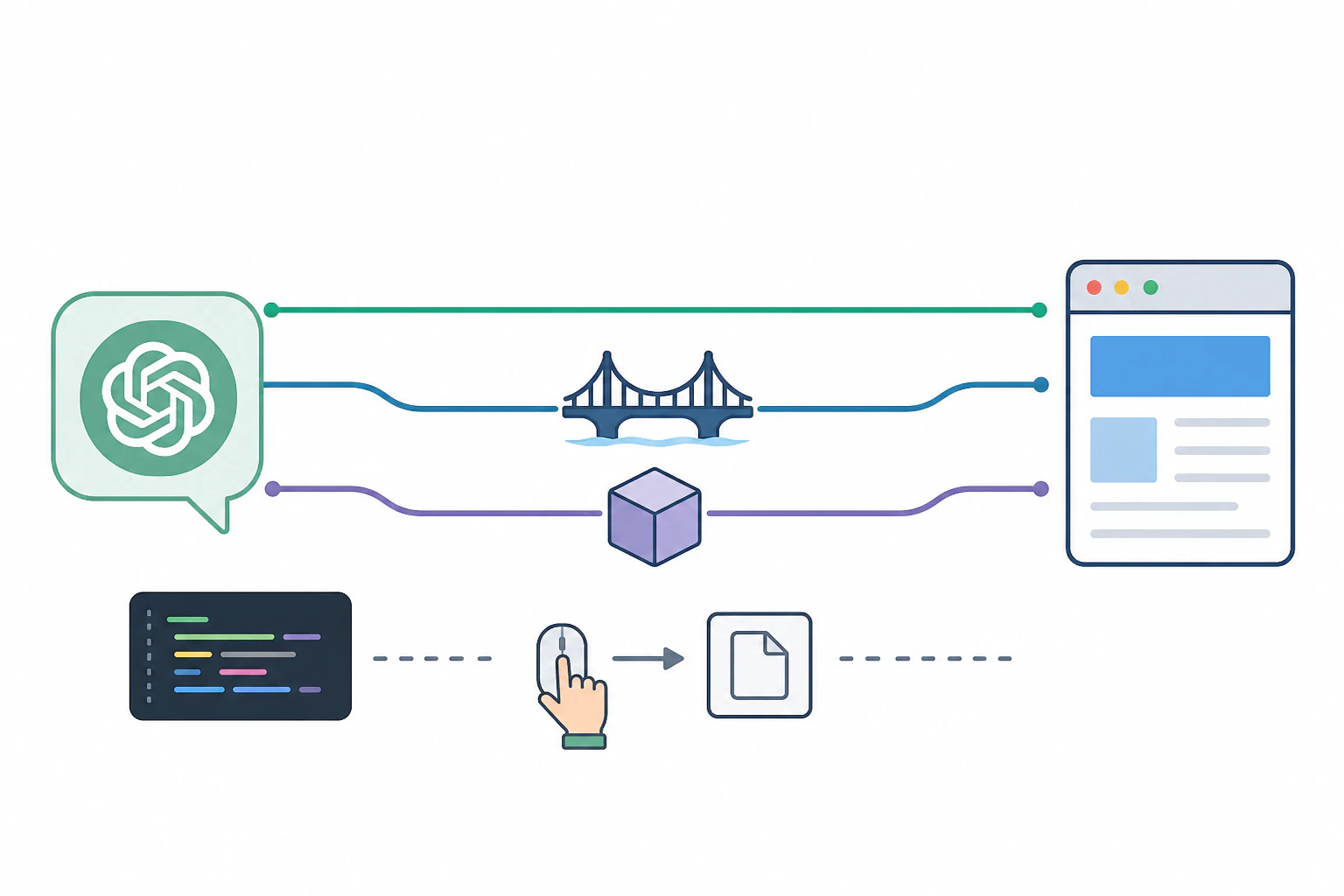
Native, inside the builder
The assistant is connected straight into the site's own editor over MCP (Model Context Protocol), the open standard that lets an AI client talk to an app securely. You describe a change, it rewrites the actual page, live, and you watch it happen in the visual editor. This is what Devani does: connect your own ChatGPT or Claude account, no API keys, and it edits content and layout together.
A platform connector
WordPress.com and Wix both ship an official bridge. You connect ChatGPT to your account, then ask it to create, edit, and publish posts and pages in plain language. It edits real content on the platform you already run. The catches are a paid ChatGPT plan and, on WordPress, where the edits actually land (more on that below).
A third-party bridge tool
Standalone services sit between ChatGPT and a site that renders HTML, so you can point them at Squarespace, Shopify, Webflow, or a custom stack and update text, images, and links by typing. Handy when your platform has no native AI editor of its own. You're adding a paid middleman, and each one supports a different slice of what a page can actually contain.
Copy-and-paste code
The oldest route and the one every guide teaches: ChatGPT writes HTML, CSS, or a block of content, you copy it, and you paste it into your site's editor by hand. It works anywhere. It's also the most manual, because ChatGPT never touches the site. It can't upload files, buy hosting, or publish. That last mile stays yours.
Connecting ChatGPT to a site, step by step.
The connector route is what most people picture when they search for this, so here's the honest sequence for a platform like WordPress.com. A native builder like Devani collapses the first four steps into one connect button, but the shape is the same.
- Start with a paid ChatGPT plan. The connectors need Plus, Pro, Team, or Enterprise. The Free tier can't hold an MCP connection open, so if you're on Free, this is where you stop until you upgrade.
- Turn on the connector. In ChatGPT, open Settings, then Apps, then the advanced settings, and enable Developer Mode. That's the switch that lets ChatGPT add an outside tool at all.
- Point it at your site. For WordPress.com you add an app with the MCP endpoint URL from their support docs and authorize it against your account. For Wix you tag @Wix in the chat and connect. Either way you're granting ChatGPT permission to act on your behalf, so treat it like any other login.
- Select the connector in each new chat. The connection isn't sticky across every conversation. Pick it at the start of a session, and if ChatGPT suddenly stops making changes, the connection has usually just dropped and needs reselecting.
- Ask for one change at a time. "Change the About page intro to two sentences about our new location" beats a paragraph of ten mixed requests. The assistant handles a stack of edits far better when you feed it in steps.
- Confirm the write. Reading your site is automatic; changing it isn't. Write operations, including deletions, wait for your explicit yes, so nothing publishes behind your back.
- Review, then roll back if it's wrong. Look at the result before you move on. On WordPress.com a deleted post is recoverable for 30 days, but deleted media, categories, and tags are gone for good, so check twice before you approve a removal.
The difference that actually decides your experience is whether the assistant is editing your page or just handing you code to paste.
Alongside the builder, or inside it.
Connecting an assistant is no longer exotic. What separates a smooth session from a frustrating one is whether your changes go into the live layout or into a raw code box next to it. This is the fault line worth understanding before you commit.
Bolt-on connectors
Great on the content, uneven on the layout.
- ✓ Edit real posts and pages on the platform you already run, in plain language
- ✓ WordPress.com's MCP and the Vibe AI plugin both shipped by mid-2026, so this is mainstream now
- × They shine inside WordPress's block editor; on a Divi or Elementor build the assistant can't reliably produce the builder's shortcodes, so you get AI-written content plus the standard HTML editor, not a live builder edit
- × Needs a paid ChatGPT plan, and the connection drops often enough to notice
Devani
MCP-native, editing inside the visual builder.
- ✓ Connect your own ChatGPT or Claude account over MCP, no API keys and no copy-paste, and it edits live content and layout together
- ✓ Pages are plain semantic HTML the assistant writes easily, so edits land in the visual editor rather than a code box beside it
- ✓ Every change snapshots automatically with one-click rollback, and the platform is fully managed with a genuinely free tier, then simple flat plans
- × It edits a Devani site. If you already run a large WordPress install leaning on a load-bearing plugin, that build stays on WordPress
The line to keep in your head is inside the builder versus alongside it. WordPress.com's connector and the Vibe AI plugin are genuinely useful, and for a content-heavy WordPress.com site they may be all you need. But the moment your pages are assembled in a page builder, the assistant loses the ability to edit the layout and falls back to writing content you place yourself. Devani sidesteps that because there's no shortcode layer between the assistant and the page. If you're weighing this against a full WordPress setup, the WordPress review digs into where its plugin model helps and where it becomes the thing you maintain, and Wix's own take on conversational editing shows up in the Wix review.
Getting the edit you actually meant, the first time.
Whichever route you're on, the edit is only as good as the instruction. Vague prompts are where people decide AI editing "doesn't work," when the real problem is that "make the homepage better" gives the assistant nothing to aim at. Name the element, name the change, and name the constraint: "on the homepage, shorten the hero paragraph to one sentence and keep the phone number in it." Concrete beats clever every time.
Break a redesign into a sequence rather than one giant request. Change the headline, look, then adjust the button, look, then rewrite the intro. It's slower to describe and far faster to get right, because you're catching each change while it's still easy to undo. If the issue is visual rather than textual, screenshots help: paste an image of the page and ask what's off, and ChatGPT will critique spacing, hierarchy, and contrast in a way that a text description can't prompt.
Do the changes go live instantly? On a connected site, an approved write is live the moment you confirm it, exactly like saving in the dashboard. That's the appeal and the reason to review before you approve. A native builder that snapshots every version, the way Devani does, turns "I broke the page" from a crisis into a one-click undo, which is the safety net that makes editing by conversation feel safe instead of nerve-racking. If the whole idea of describing a site into existence is new to you, the roundup of AI website builders lays out how the conversational approach compares across platforms.
Can ChatGPT edit my website directly?
Not on its own, and not on every site. Out of the box ChatGPT writes code and content you paste in yourself. To have it change a live site, you connect it: WordPress.com and Wix offer official bridges, third-party tools cover other platforms, and a native CMS like Devani connects your own ChatGPT account straight into the editor over MCP. Without one of those connections, ChatGPT can only hand you the code.
Do I need a paid ChatGPT plan to edit my site?
For the connector routes, yes. WordPress.com's integration requires ChatGPT Plus, Pro, Team, or Enterprise, because the Free tier can't hold the MCP connection. The copy-and-paste method works on any plan since ChatGPT is only generating text there, and native platforms let you bring whichever ChatGPT or Claude account you already pay for rather than buying a separate API key.
Can ChatGPT edit any website, like Squarespace or Shopify?
Only through a bridge. There's no universal "edit any site" button. WordPress.com and Wix have native connectors, and third-party services can sit in front of Squarespace, Shopify, Webflow, or a custom HTML stack. For anything without a connector, you're back to ChatGPT writing code that you paste into that platform's own editor.
Do the changes go live instantly, and can I undo them?
On a connected site an approved change is live as soon as you confirm it, just like saving in the dashboard, which is exactly why write operations ask for your confirmation first. Undo depends on the platform. WordPress.com recovers a deleted post for 30 days but not deleted media or tags, while a version-snapshotting builder like Devani rolls any change back with one click.
Do I need to know how to code?
For connected and native editing, no. You describe the change in plain English and the assistant handles the markup. Coding knowledge only becomes useful on the copy-and-paste route, where you're the one dropping ChatGPT's HTML into place and occasionally nudging it when something renders wrong.
ChatGPT website editing is real, and in 2026 it's genuinely useful, but "editing" covers everything from pasting a code block to watching your live layout rewrite itself as you talk. The gap between those two experiences is the whole decision. If you already run a content-heavy WordPress.com or Wix site, the native connector is a fast win worth turning on this afternoon. If you're building something new and want the assistant editing the page rather than a code box beside it, a site that treats AI as native, not bolted on, is the version of this that actually feels like editing by conversation.
See the assistant edit inside the builder.
A Devani site is built with AI in about 10 to 15 minutes and goes live in under a minute on the managed free tier. Connect your own ChatGPT account and change the page by typing.